Create your first link page
Reference page: This is the “what each option does” guide. For the screenshot walkthrough, use Tutorial — first link page.
What this page is (and isn’t)
Section titled “What this page is (and isn’t)”Use this page when you need every field, rule, and behavior in the create/edit flow.
For the visual path through the product (marketing site → sign-up or sign-in → dashboard → editor), with screenshots, open Tutorial — first link page instead. High-level account and plan context lives in Onboarding.
Overview
Section titled “Overview”In the dashboard, a link page (often labeled “link”) is your public landing page. It can include:
- A header (banner and avatar or picture)
- Social icons with outbound URLs
- Link buttons and card tiles that send visitors to destinations
- Optional marketing features—deeplink behavior, geo-restrictions, chatbot, Meta Pixel—when your plan supports them
Public availability is controlled with the published toggle.
At a glance
Section titled “At a glance”- Pick a unique slug (username).
- Fill link details (title, description, optional direct link URL if your plan includes it).
- Add socials, links, and cards; reorder as needed.
- Set appearance (layout style and colors).
- Configure advanced and chatbot options if unlocked.
- Publish and share your URL.
Step-by-step
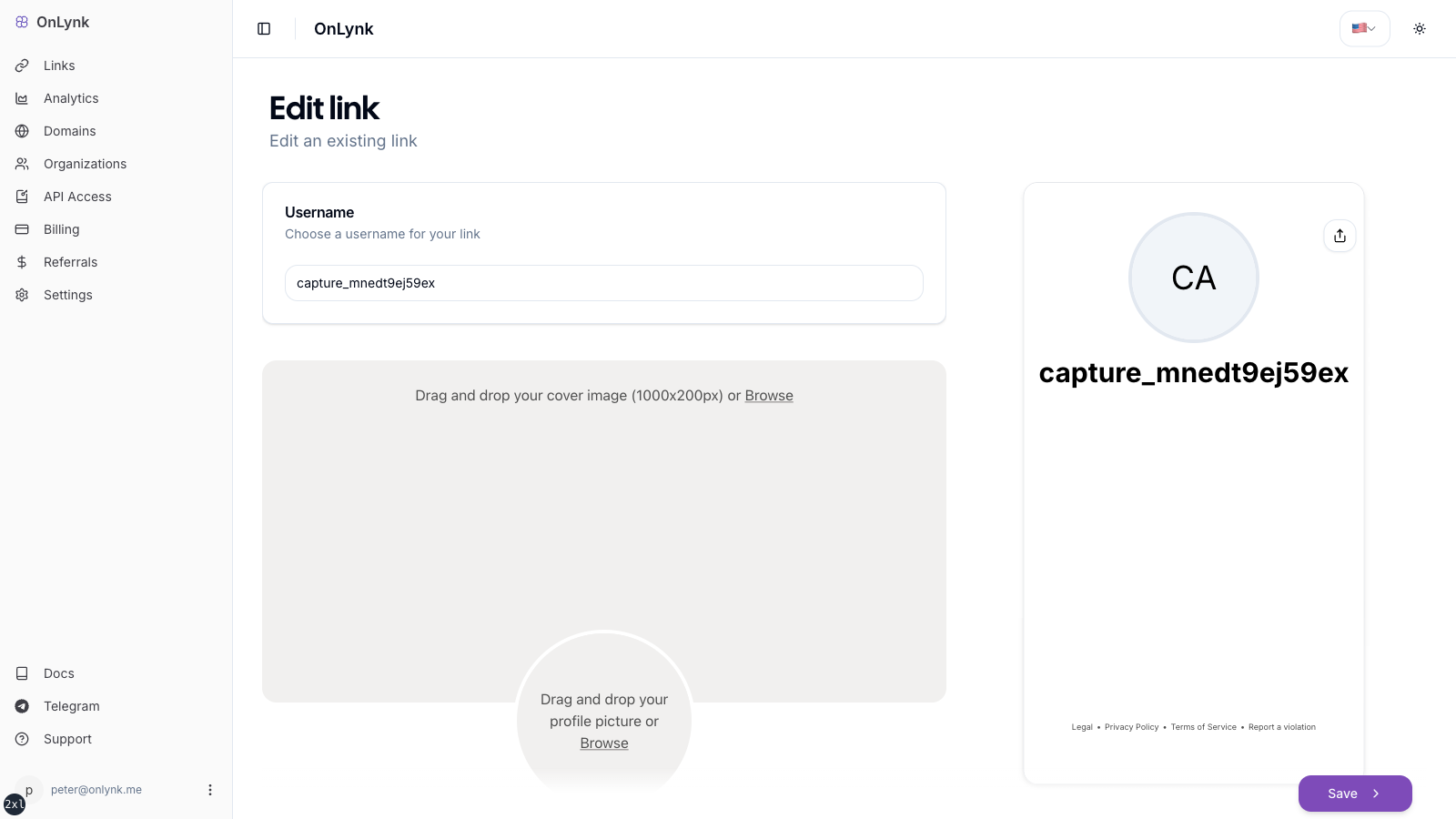
Section titled “Step-by-step”1. Slug (username)
Section titled “1. Slug (username)”In the Username step, define your slug:
| Rule | Detail |
|---|---|
| Length | 3–32 characters |
| Characters | a-z, A-Z, 0-9, _, . |
| Dots | Not allowed at the start or end |
If the slug is taken, you will see an error (for example “username already exists”).
2. Link details
Section titled “2. Link details”Under Link details, set:
- Title and Description
- Direct link (optional)—only if your subscription includes direct links; otherwise the field stays disabled
Direct link behavior (bots, fallback landing page, and risk reduction)
Section titled “Direct link behavior (bots, fallback landing page, and risk reduction)”When Direct link is set, OnLynk uses it as your primary destination, but the exact behavior depends on Deeplink, in-app browsers, and bot detection.
Quick mental model: humans are routed toward your Direct link (sometimes via a deeplink attempt), while bots/crawlers stay on the landing page to reduce flags.
1) Bots / crawlers (risk‑reduction path)
Section titled “1) Bots / crawlers (risk‑reduction path)”- If a bot/crawler is detected, OnLynk stays on the landing page (
/<slug>) instead of auto-forwarding to the destination.
This “landing page fallback” is intentional: many social platforms run automated checks with bot-like fetchers. Serving a compliant landing page to those fetchers can reduce flags or enforcement risk compared to always exposing the raw destination URL.
2) Humans with Deeplink OFF
Section titled “2) Humans with Deeplink OFF”- If Deeplink is disabled and the visitor is not a bot, the page redirects directly to your Direct link URL.
3) Humans with Deeplink ON (Direct link is used for the deeplink attempt)
Section titled “3) Humans with Deeplink ON (Direct link is used for the deeplink attempt)”With Deeplink enabled, OnLynk still uses your Direct link as the target URL and then:
- In some in‑app browsers (Instagram, etc.), it can attempt to open the app via a deeplink derived from your Direct link (and may show “exit steps” when required).
- In regular browsers (not in‑app), it may still auto-redirect to the Direct link, but the deeplink-specific logic controls when it tries to open an app first.
Notes:
- Query params forwarding: when a human is redirected, OnLynk forwards query parameters from the OnLynk URL to your Direct link (while preserving parameters already present on the Direct link).
- Analytics: the human redirect path records a redirect event; bot traffic is handled differently (see AI Shield and Glossary).
- Recommendation: if your destination is policy-sensitive, prefer leaving Direct link empty and use the landing page + buttons/cards instead (see Direct link and Social media policies & risks).
Tip: If you’re getting link blocks or account limits, stop using Direct link for a while and share the /<slug> landing page instead. Keep destinations compliant (see Compliance).
3. Socials
Section titled “3. Socials”In Social manager:
- Use Add social link for each network
- Choose the network type and paste the URL
- Drag and drop to reorder
4. Links (buttons)
Section titled “4. Links (buttons)”In Links manager, each button supports:
- Title and Link (URL) (required)
- Icon, animation / effect (optional)
- Adult content confirmation (optional)
- Cloaked (optional)—only if your plan includes cloaking
Redirect behavior
- Not cloaked: visitors go to the URL you entered.
- Cloaked: the public URL uses OnLynk’s token path
/go/<cloak>, which resolves server-side to your real destination.
5. Cards
Section titled “5. Cards”In Cards manager, configure:
- Title, Link (URL), Card image
- Optional icon, adult content, and cloaked (same cloaking rules as links)
6. Appearance
Section titled “6. Appearance”Under Appearance:
- Page style:
DefaultorFull - Colors: background, card background, text, button fill, button text (
backgroundColor,cardBackgroundColor,textColor,buttonsColor,buttonsTextColor)
7. Advanced customization
Section titled “7. Advanced customization”If your plan allows Advanced customization, you may enable:
- City display (with optional custom city label text)
- Online indicator, response delay, promotion text
- Meta Pixel: toggle on and set Meta Pixel ID
8. Chatbot
Section titled “8. Chatbot”If chatbot is on your plan, under Chatbot configuration:
- Add up to three messages (
chatbotMessages) - Optionally set chatbot link—where users go after the sequence (
chatbotLink)
Publishing
Section titled “Publishing”- New pages are generally created published and often with deeplink enabled by default.
- Use the Published switch in the page actions:
- On: the page is served to the public (subject to domain and plan rules)
- Off: the page is not shown as a public destination
Limitations
Section titled “Limitations”- How many pages can be published at once depends on
plan.links. - Features such as direct link, advanced customization, Meta Pixel, geo-restrictions, chatbot, cloaking, analytics, and custom domains require the matching plan entitlements.
- Slug rules are fixed; see the table above.
Why is my page not public?
Section titled “Why is my page not public?”Common causes: Published is off, a custom domain is misconfigured or not verified, or you have reached your plan’s published quota.
“Direct links not available in your plan”
Section titled ““Direct links not available in your plan””Upgrade to a plan that includes direct links, or remove reliance on the direct-link field.