Chatbot
Tip: Keep messages short (under 60 characters each) and set one clear destination. Use analytics to compare “with chatbot” vs “without chatbot” click-through rates.
What it looks like
Section titled “What it looks like”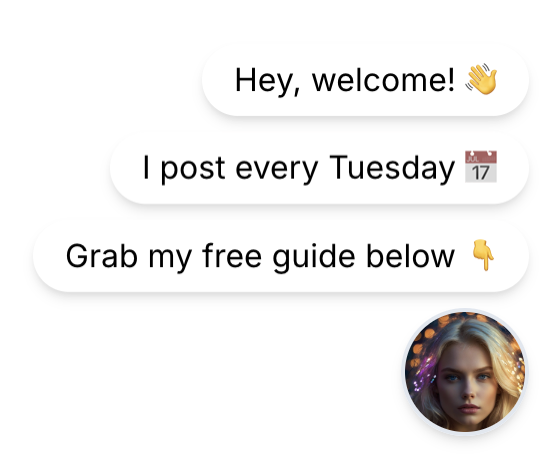
The chatbot appears in the bottom-right corner of your public link page. It shows your profile avatar as a floating button, and types out your messages one by one in white rounded chat bubbles above it — like a real chat conversation, but automated.
When visitors tap the avatar or any message, they are sent to the chatbot link (if you configured one), and a CHATBOT_CLICK analytics event is recorded.
How it works
Section titled “How it works”- The page loads → after a brief delay, the first message starts typing out character by character (≈100 ms per character)
- When the first message finishes, the second message starts typing
- After all messages are displayed, the sequence is complete
- Tapping the avatar or any message fires the chatbot analytics event and navigates to your chatbot link
The animation uses Framer Motion — it’s smooth and does not block page rendering.
Configuration
Section titled “Configuration”Chatbot is available on Creator and Agency plans.
| Field | Required | Limit | Notes |
|---|---|---|---|
| Message 1 | ✓ (to enable) | No hard limit | Aim for ≤ 60 chars for readable bubbles |
| Message 2 | — | No hard limit | Displayed after message 1 finishes typing |
| Message 3 | — | No hard limit | Displayed after message 2 finishes typing |
| Chatbot link | — | Valid URL | Where the visitor goes when they tap |
Maximum 3 messages. You can use 1, 2, or 3 — you cannot add a 4th.
To configure:
- Open your link page → Edit
- Scroll to Chatbot configuration
- Click Add message and type your text
- Optionally fill in the Redirect link field
- Save
Character length tip: Each character takes ~100 ms to type. A 20-character message finishes in ~2 seconds. A 60-character message takes ~6 seconds. Keep messages short so visitors don’t wait — or leave — before the sequence completes.
Writing good chatbot messages
Section titled “Writing good chatbot messages”Do:
- Lead with a hook in message 1 (greeting or curiosity trigger)
- Add context in message 2
- End with a clear call to action in message 3
- Use emojis to draw attention — they render fine
Don’t:
- Repeat your page title — the chatbot is separate from your main content
- Use messages longer than one short sentence each
- Send visitors to a confusing or unrelated destination
Example sequence:
Message 1: "Hey, welcome! 👋"Message 2: "I drop free tips every Tuesday 📅"Message 3: "Grab the free guide below 👇"Chatbot link: https://yourdomain.com/guideMeasuring performance
Section titled “Measuring performance”When analytics is enabled on your plan, you can track:
CHATBOT_CLICKevents — how many visitors tapped the chatbot- Compare this to total page views to calculate chatbot CTR
To A/B test: toggle the chatbot off for a week, then on for a week, and compare click-through rates in Analytics.
Mobile behavior
Section titled “Mobile behavior”The chatbot is positioned absolutely at the bottom-right and stays above your links list. On small screens (< 375 px wide), the bubble text wraps gracefully. The avatar is 64×64 px (4rem).
Related
Section titled “Related”- Page analytics —
CHATBOT_CLICKevent tracking - Create your first link page — Full editor reference including chatbot fields
- Meta Pixel — Pixel can fire on chatbot link interactions when configured