Geo-restrictions
Per-page feature: Geo-restrictions are configured per link page. Start with one simple rule, then expand.
Overview
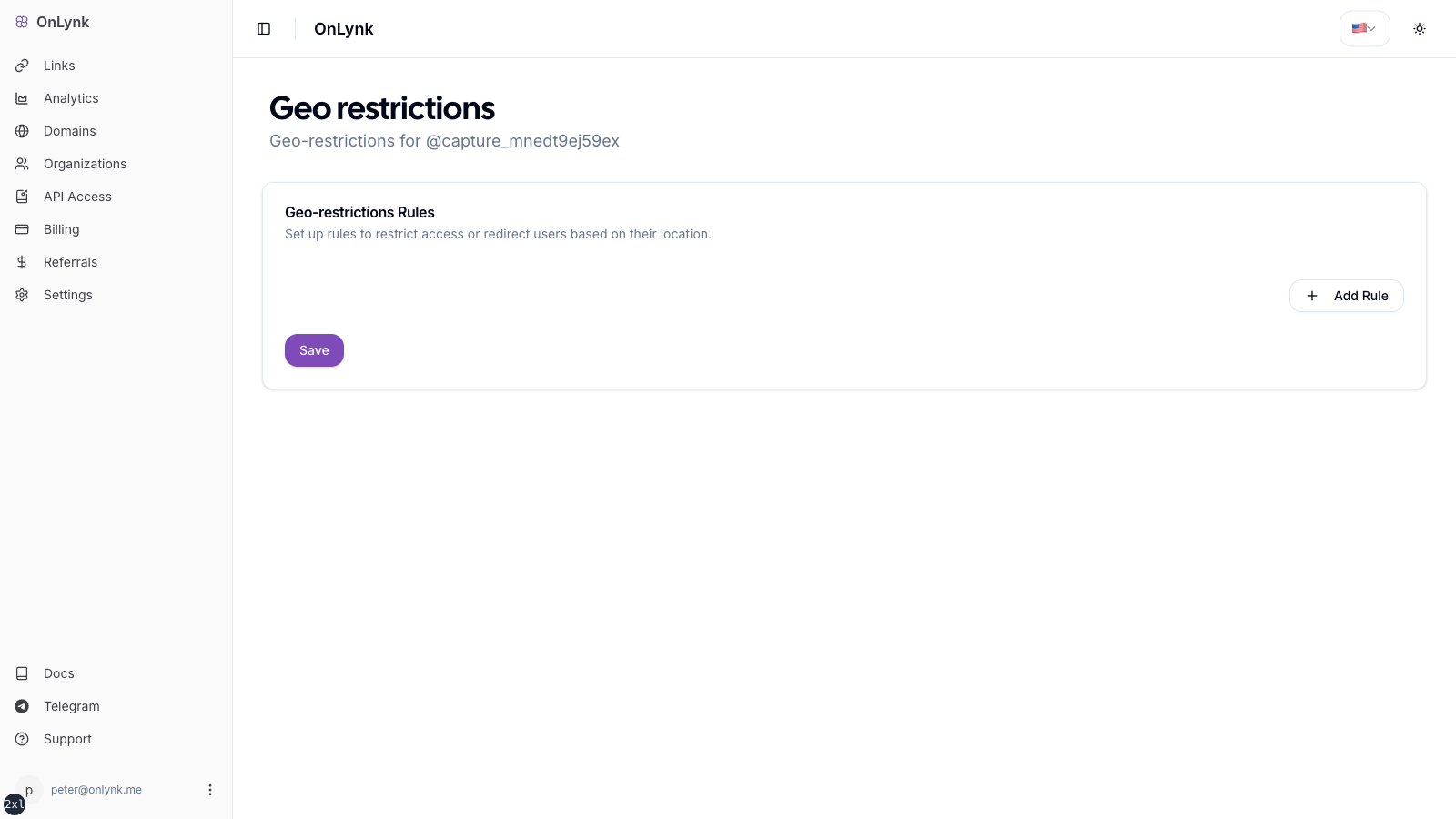
Section titled “Overview”Geo-restrictions let you change what happens when someone opens your public link page based on their approximate location (country or city).
For each page you can define rules with one of three actions:
| Action | Behavior |
|---|---|
| Block | Visitors won’t be able to open the page from that location |
| Redirect | Visitors are sent to a different URL you choose |
| Show another page | Visitors are sent to a different OnLynk page |
Before you start
Section titled “Before you start”- Your subscription must include geo-restrictions.
- You need edit access to the page.
Configure in the dashboard
Section titled “Configure in the dashboard”- Open onlynk.me and sign in (create an account first if needed). Subscribe to a plan that includes geo-restrictions if yours does not.
- Open the dashboard (account menu, top right).
- Go to Links (or equivalent) and select the link page you want to restrict.
- Open Geo-restrictions for that page (row, icon, or section label as shown in the UI).
- Add rules for each case you need:
- Restriction type:
countryorcity - Select country (and city when using city rules)
- Choose BLOCK, REDIRECT, or PAGE
- Restriction type:
- Fill action-specific fields:
- REDIRECT: destination URL
- PAGE: choose the target page from the picker
- Save the rule set.
- Back on the link list, a green (or similar) indicator on the row often means geo rules are active—wording and styling may vary by release.
Bot handling
Section titled “Bot handling”REDIRECT: If the visitor is classified as a bot, the external redirect is not executed; the normal page is shown instead (so crawlers and verification bots may see your landing page rather than being sent away).BLOCK: Blocked responses (404) apply even when the visitor is a bot.
Limitations
Section titled “Limitations”- The dashboard focuses on country and city rule types.